

In This Blog
TL;DR
SQL Server Reporting Services (SSRS) helps organizations create, manage, schedule, secure, and deliver reports from multiple data sources.
Reports are typically accessed through the SSRS web portal, with direct report URLs available for sharing or embedding.
Slow or timing-out reports often point back to inefficient queries, heavy processing, or poorly optimized data sources.
SQL Server Agent jobs can monitor SSRS issues and send alerts when problems like report timeouts occur.
Query tuning, report snapshots, indexing, and good monitoring practices help keep SSRS reliable and responsive.
Overview of SQL Server Reporting
SQL Server Reporting Services (SSRS) is a server-based reporting platform that provides comprehensive reporting functionality for a variety of data sources. With SSRS, teams can create interactive, tabular, graphical, and free-form reports from relational, multidimensional, and XML-based data sources.
Reports can be viewed through a web browser or accessed on demand through applications and portals. SSRS also includes features for report scheduling, versioning, snapshots, and security. This makes it a useful tool for organizations that need to distribute consistent reporting across departments while maintaining control over access and delivery.
At a practical level, SSRS helps turn operational and business data into usable information. Whether reports are used by finance teams, operations leaders, executives, or customer-facing teams, the goal is the same: make important data easier to access, understand, and act on.
Where to Find Reports
Reports are typically accessed through the web portal of your SSRS instance. The default URL usually follows this format: https://<server name>/Reports. From the web portal, users can browse available reports, view report properties, manage subscriptions, and set security options.
Individual reports can also be accessed directly through their URLs. These typically follow this format: https://<server name>/Reports/report/<report path>. Direct URLs are useful when a report needs to be shared with a specific team, linked from documentation, or embedded into another application or portal.
For administrators, the web portal is also the central place to manage report folders, subscriptions, permissions, and other report-level settings. Keeping reports organized and properly secured is just as important as building the reports themselves.
Troubleshooting Report Issues
If reports are running slowly or timing out, the underlying queries may be the culprit. In many cases, SSRS performance issues are not caused by the reporting tool itself, but by how much data the report retrieves, how the query is written, or how the source database is indexed.
To identify problematic queries, start by reviewing SSRS execution logging:
Enable query logging in the report server configuration file,
rsreportserver.config. SetEnableExecutionLoggingtoTrue.After reproducing the issue, open the report server execution log. By default, it is located at
C:\Program Files\Microsoft SQL Server Reporting Services\SSRS\LogFiles\RSExecutionLog_*.log.Look for entries with long
TimeDataRetrievalorTimeProcessingvalues. TheRequestTypewill beInteractiveorSubscription, depending on how the report was run.The
TextDatacolumn contains the actual query. Use this to further diagnose issues in the query and underlying data sources.
Once you identify a slow query, the next step is to examine the execution plan, indexing strategy, joins, filters, and volume of data being returned. A report that pulls more data than users actually need will usually be slower, harder to maintain, and more expensive to run.
Setting Up Alerts
SQL Server Agent can be used to monitor SSRS and send alerts when issues occur, such as long-running queries or report timeouts. This gives administrators a way to detect problems proactively instead of waiting for users to report them.
Here is a general process for creating an alerting job:
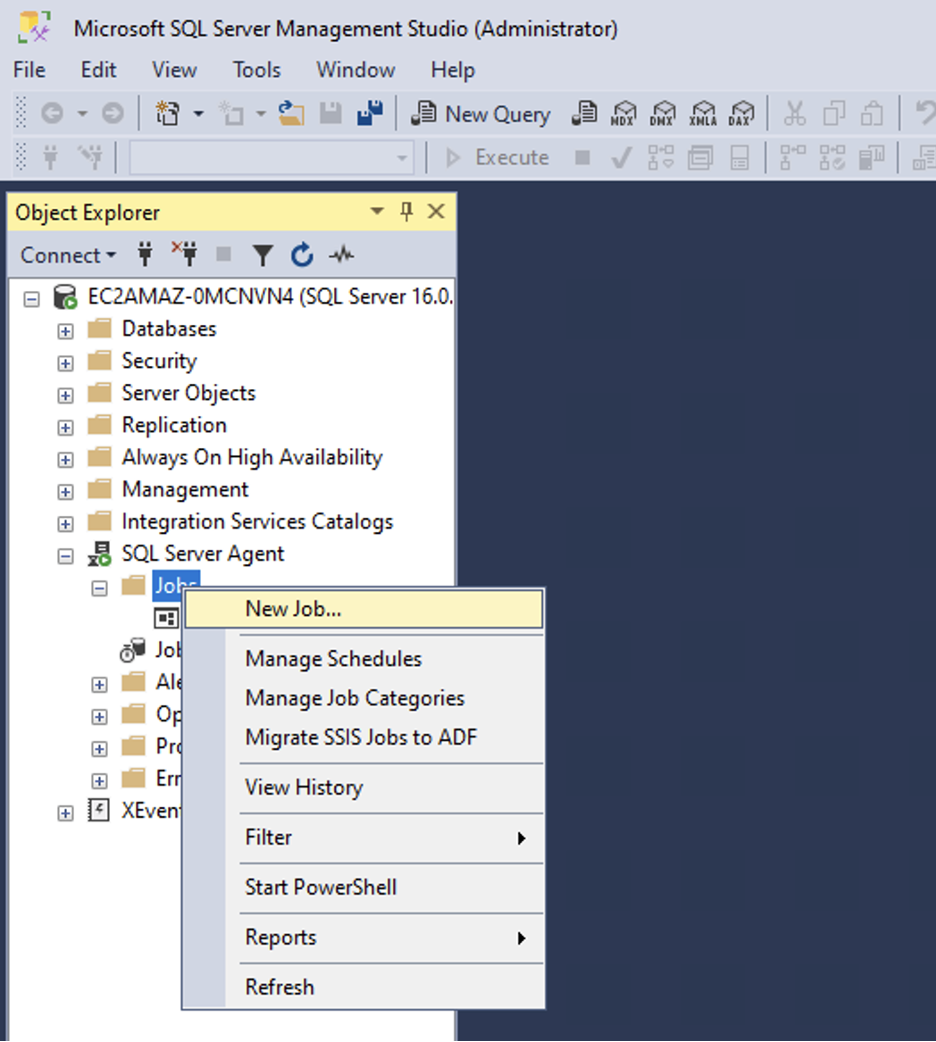
In SQL Server Management Studio, expand SQL Server Agent and right-click Jobs. Select “New Job.”
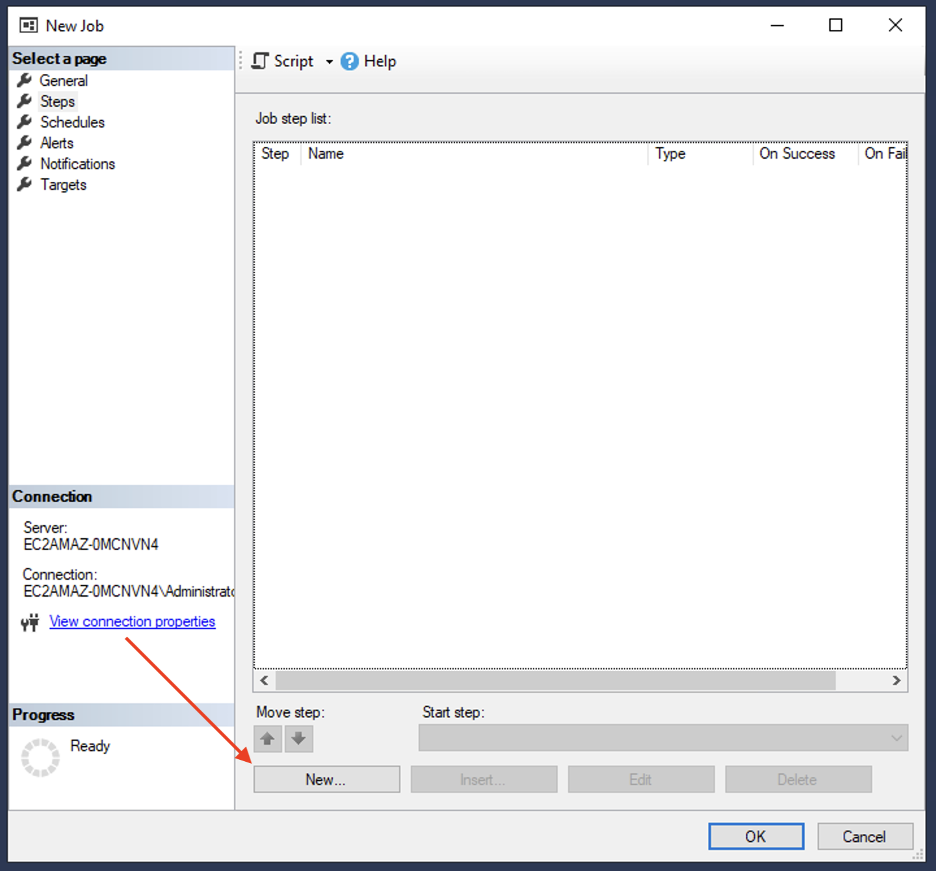
Give the job a name and description. Under “Steps,” click “New...”
In the command field, use a Transact-SQL script to check for issues. For example, to alert on report timeouts, query the
ExecutionLog3view:
IF EXISTS (
    SELECT *
    FROM ReportServer.dbo.ExecutionLog3
    WHERE TimeStart > DATEADD(minute, -5, GETDATE())
      AND Status LIKE 'Timeout%'
)
BEGIN
    EXEC msdb.dbo.sp_send_dbmail
      @profile_name = 'default',
      @recipients = '[email protected]',
      @subject = 'Report timeout in last 5 minutes',
      @body = 'A report timed out in the last 5 minutes. Check the execution log for details.';
END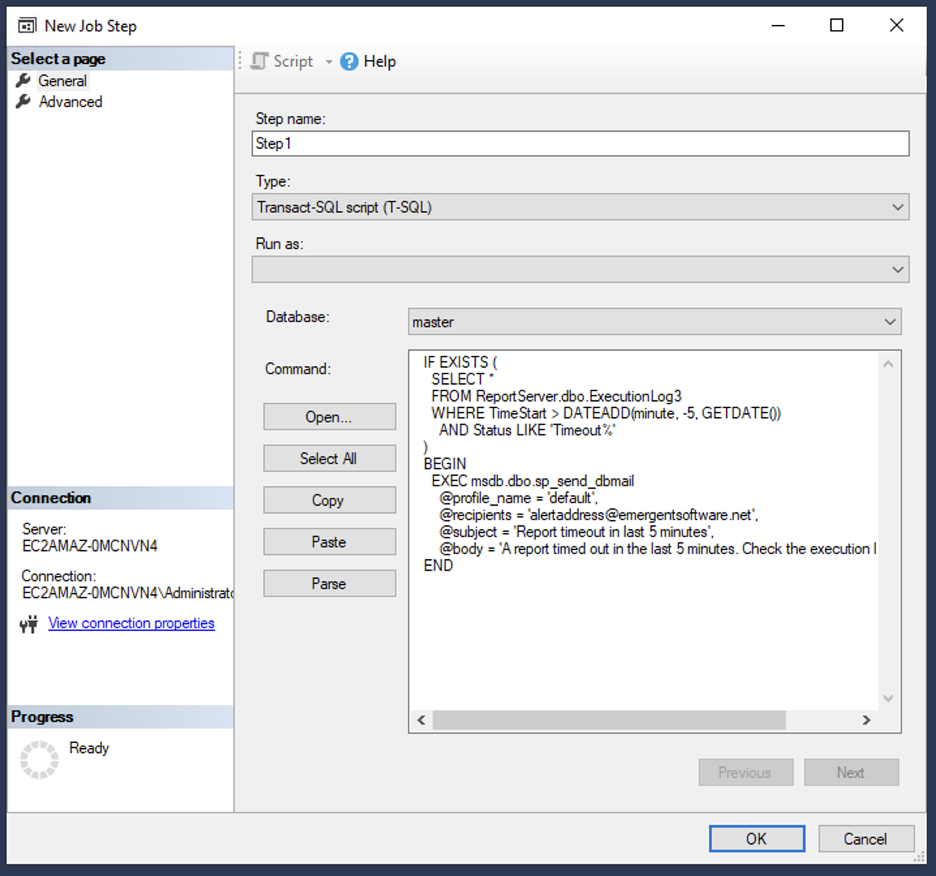
Go to the Schedules tab. Click
New..., then set a schedule to run the job at your desired frequency.
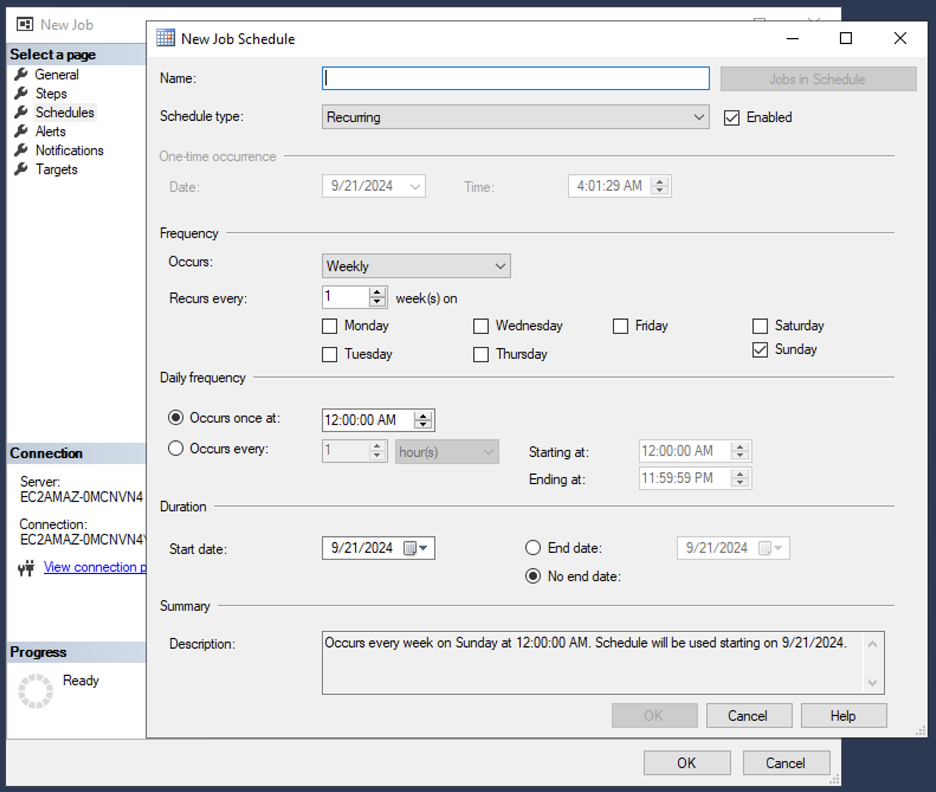
Test it out. You may need to fine-tune the alert logic and frequency so the job catches meaningful problems without creating unnecessary noise.
The goal is not to alert on every minor issue. The goal is to create alerts that help your team respond to real problems quickly. Over time, you can adjust thresholds, timing, and notification rules based on how reports behave in production.
Query Tuning Advice
A few practical tips can help improve SSRS query performance and reduce report timeouts. Many reporting problems start with the query, so the database layer is often the best place to begin tuning.
Use indexed views where possible to precompute expensive joins and aggregations.
Avoid using
SELECT *. Only retrieve the columns the report actually needs.Use
NOLOCKhints carefully to avoid locking conflicts during report runs, but be aware of potential data consistency issues.Consider report snapshots for expensive reports that do not always need real-time data.
Partition large fact tables by date ranges when appropriate.
Make sure statistics are up to date on queried tables so SQL Server can select better execution plans.
Here’s what that means in practice. If a report runs once a day for an executive dashboard, it may not need to query live transactional tables every time someone opens it. A snapshot or precomputed dataset may provide a faster, more stable experience. On the other hand, operational reports that need current data may require more careful query and indexing work.
Conclusion
SQL Server Reporting Services is a powerful tool for delivering data insights across your organization. By understanding how to find and manage reports, identify and resolve performance issues, set up monitoring and alerts, and optimize your queries, you can ensure that your SSRS implementation runs smoothly and effectively meets your business reporting needs.
Contact us today to discover how our services can help your business succeed. Our expert team provides tailored solutions to optimize your technology infrastructure, enhance productivity, and drive growth.
How Emergent Software Can Help
We help organizations improve reporting performance, reliability, and usability across SQL Server and modern data platforms. Whether you need help troubleshooting SSRS reports, tuning SQL queries, building dashboards, or modernizing your reporting environment, our team brings experience across data engineering, SQL Server, Azure, and business intelligence. If this sounds familiar, we can help.
Final Thoughts
SSRS can be a dependable reporting platform when it is configured, monitored, and maintained properly. The challenge is that reporting issues often show up as user complaints, slow dashboards, or failed subscriptions long after the underlying problem started. Proactive logging, alerting, and query tuning help teams catch those issues earlier.
The best reporting environments balance performance, accuracy, security, and usability. That means building reports that retrieve the right data, securing access appropriately, and giving administrators visibility into how reports are running.
If you're ready to improve your SQL Server reporting environment, Emergent Software is here to help. Reach out — we'd love to learn more about your goals.
Frequently Asked Questions
Can you create reports in SQL Server?
Yes, SQL Server allows you to create comprehensive reports using SQL Server Reporting Services. With SSRS, you can generate tabular, matrix, chart, graphical, and free-form reports to analyze and visualize data. Reports can be created using tools such as Report Builder or SQL Server Data Tools. Once created, they can be deployed to the SSRS server for users to access through a web portal or application. This makes SQL Server a strong option for organizations that need structured reporting from operational or analytical data sources.
What is SQL Server Reporting Services?
SQL Server Reporting Services, or SSRS, is a server-based reporting platform from Microsoft. It provides tools for creating, deploying, managing, securing, and distributing reports. Users can view reports through a web-based interface and export them into formats like PDF, Excel, and more. SSRS also supports subscriptions, scheduling, snapshots, and role-based security. It is commonly used by organizations that need reliable reporting from SQL Server and other data sources.
How do you use SQL for reporting?
Using SQL for reporting involves writing queries that retrieve data from a database and then presenting that data in a report format. In SQL Server environments, SSRS can use those queries as datasets for reports. Developers or analysts define data sources, create datasets, design report layouts, and deploy the finished reports to the SSRS server. Good reporting also requires attention to performance, indexing, filtering, and security. The goal is to provide users with accurate and useful data in a format they can act on.
What is a SQL reporting tool?
A SQL reporting tool is software that helps users create, manage, and distribute reports based on data stored in SQL databases. SQL Server Reporting Services is one example of a SQL reporting tool. It allows teams to build reports, schedule delivery, manage permissions, and export results in different formats. Reporting tools help turn raw database information into business insights. They are especially useful when many users need consistent access to the same trusted reports.
Why do SSRS reports run slowly?
SSRS reports often run slowly because of inefficient queries, missing indexes, large datasets, or heavy report processing. Sometimes the report is trying to retrieve far more data than users actually need. Other times, the source database may not have the right indexes or updated statistics to support the query efficiently. Report design can also contribute to delays if there are complex calculations or large visual elements. The best starting point is to review execution logs and identify whether the delay is coming from data retrieval, processing, or rendering.
How can you monitor SSRS report failures or timeouts?
You can monitor SSRS report failures or timeouts by using SSRS execution logs and SQL Server Agent jobs. The ExecutionLog3 view can help identify recent report runs, statuses, timing, and failures. A SQL Server Agent job can query this information on a schedule and send an email when timeouts or other issues occur. This creates a proactive alerting process so administrators can respond before users repeatedly experience problems. Alert logic should be tuned over time to focus on meaningful issues and avoid unnecessary noise.
Author



Let’s Start Building Together
Whether you're modernizing legacy apps, strengthening your cloud security, or planning your next big initiative, Emergent Software is here to help.