

In This Blog
- Introduction
- How to Enable Database Mail
- Step-by-Step Database Mail Setup
- Troubleshooting Tips
- Configuring SQL Server Agent Alerts
- Example Alert: Transaction Log Over 5 GB
- Best Practices for SQL Alerts
TL;DR
- Database Mail enables SQL Server to send automated email notifications for alerts and events.
- SQL Server Agent uses Database Mail to trigger alerts based on errors, performance thresholds, or system events.
- Proper configuration helps teams detect issues early and respond before they impact users.
- Common alerts include high severity errors, long-running queries, and performance bottlenecks.
- Effective alerting requires tuning thresholds to avoid unnecessary noise and alert fatigue.
Introduction
When you're managing on-premises Microsoft SQL Server environments, monitoring is not optional. It’s how you catch issues before they turn into outages, performance slowdowns, or data loss. Two core pieces of that monitoring setup are Database Mail and SQL Server Agent alerts.
Database Mail allows SQL Server to send email notifications, while SQL Server Agent uses those notifications to alert your team when something goes wrong. Together, they give you a proactive way to stay on top of database health and performance.
In this guide, we’ll walk through how to configure both, along with practical examples and tips to help you set up alerts that actually add value instead of noise.
How to Enable Database Mail
Database Mail is a feature in SQL Server that enables the database engine to send emails through an SMTP server. This is what powers notifications for alerts, job failures, and system events.
Before you can configure alerts, you need to enable and properly configure Database Mail. One important note: Database Mail is not available in SQL Server Express, but it is supported in Developer and other editions.
Step-by-Step Database Mail Setup
Step 1: Enable Database Mail
- Open SQL Server Management Studio (SSMS) and connect to your server.
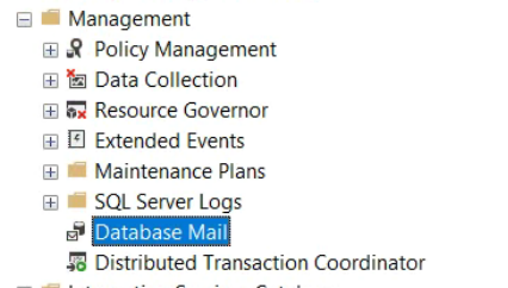
- Expand the Management node in Object Explorer.
- Right-click Database Mail and select Configure Database Mail.
- Click Next to start the wizard.
Step 2: Choose Setup Option
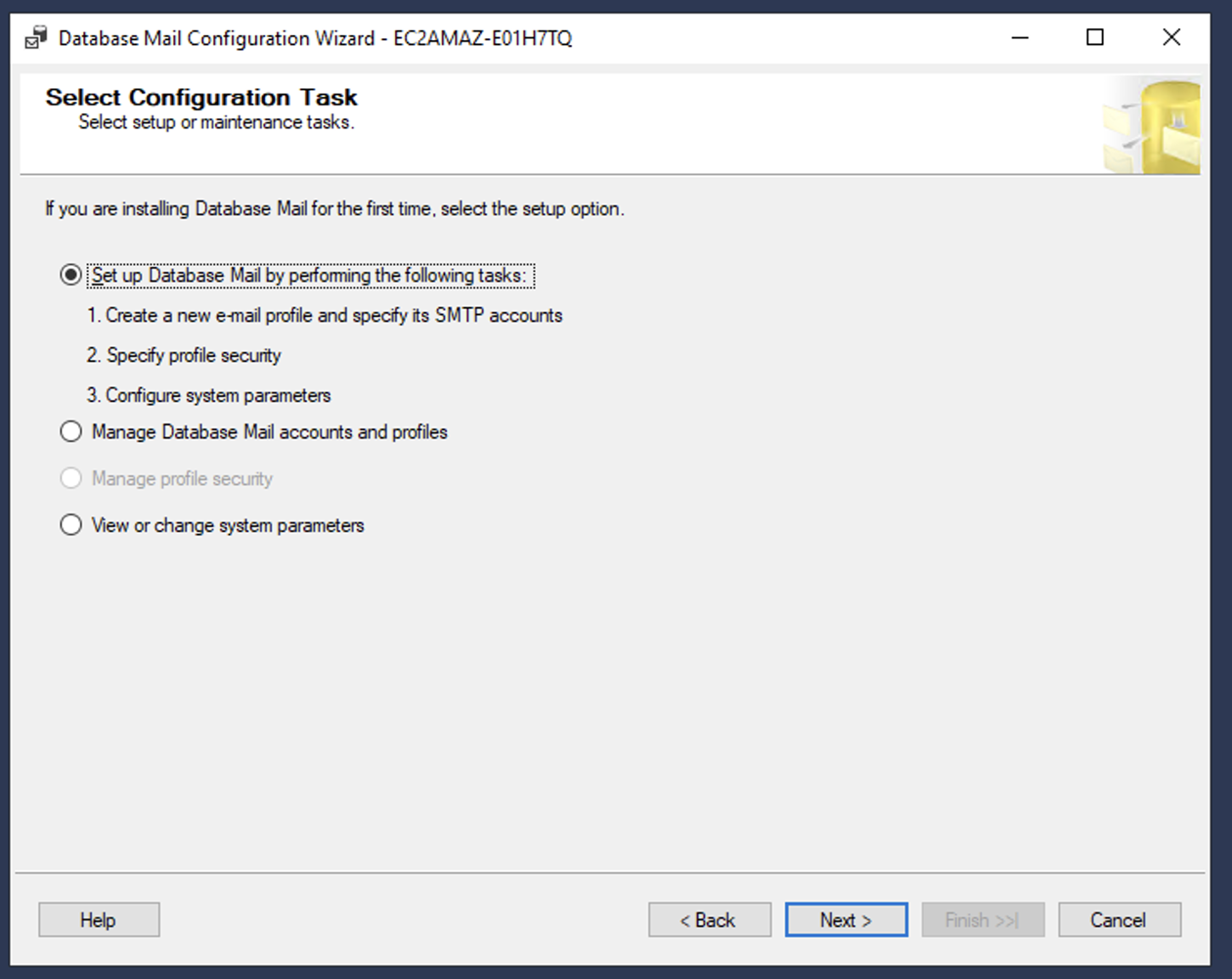
- Select “Set up Database Mail by performing the following tasks.”
- Click Next to continue.
Step 3: Create a Mail Profile
- The wizard will prompt you to create a new profile.
- Accept the default or provide a custom name.
- Click Next.
Step 4: Configure Mail Account
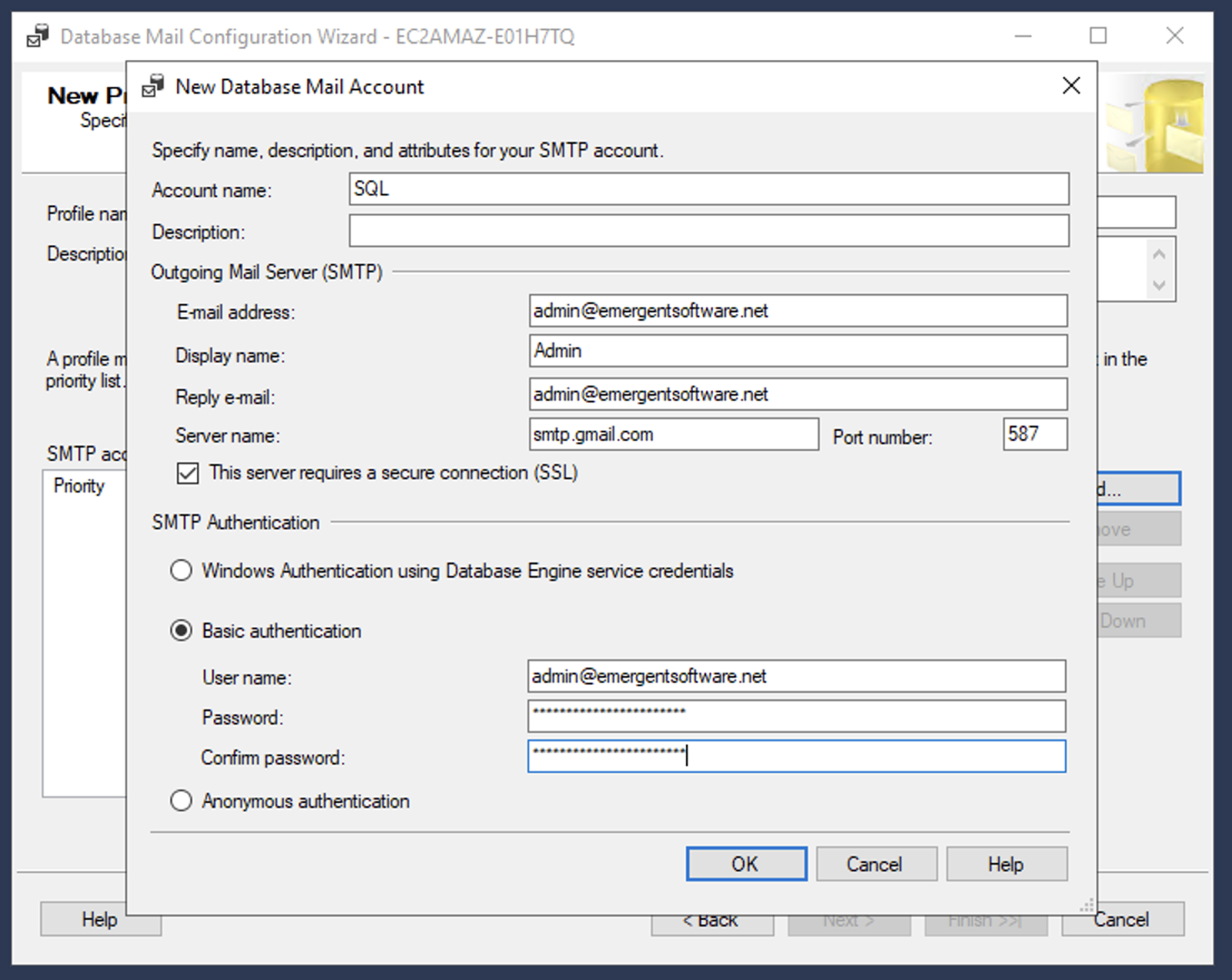
- Click Add to create a new account.
- Enter a name and email address.
- Provide SMTP server details including server name and port.
- Configure authentication and encryption settings as required.
- Send a test email to verify configuration.
Step 5: Create Default Public Profile
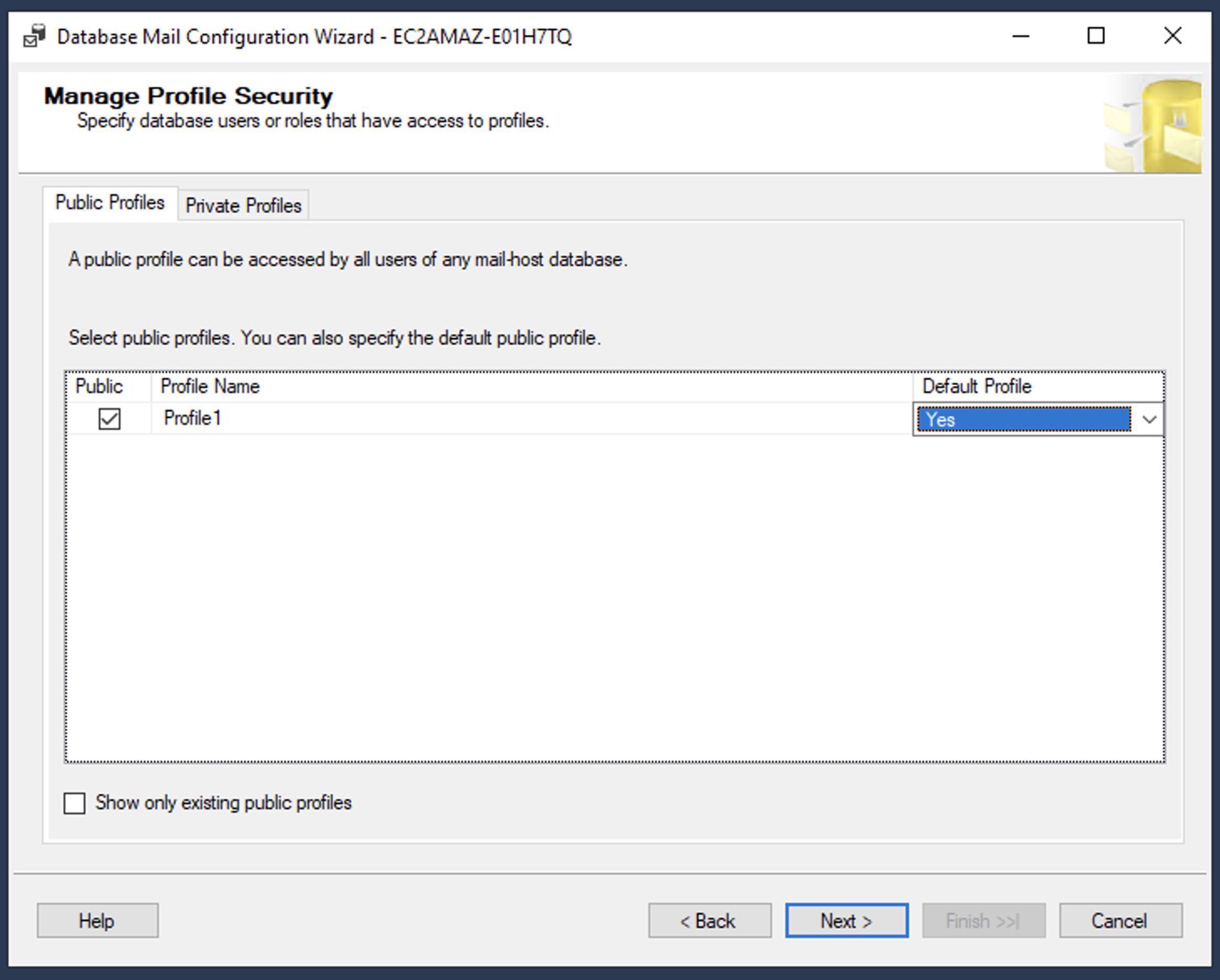
- Allow the wizard to create a default public profile.
- This profile will be used by SQL Server Agent.
- Click Next.
Step 6: Configure System Parameters
- Review attachment size limits and logging settings.
- Adjust based on your environment requirements.
- Click Next.
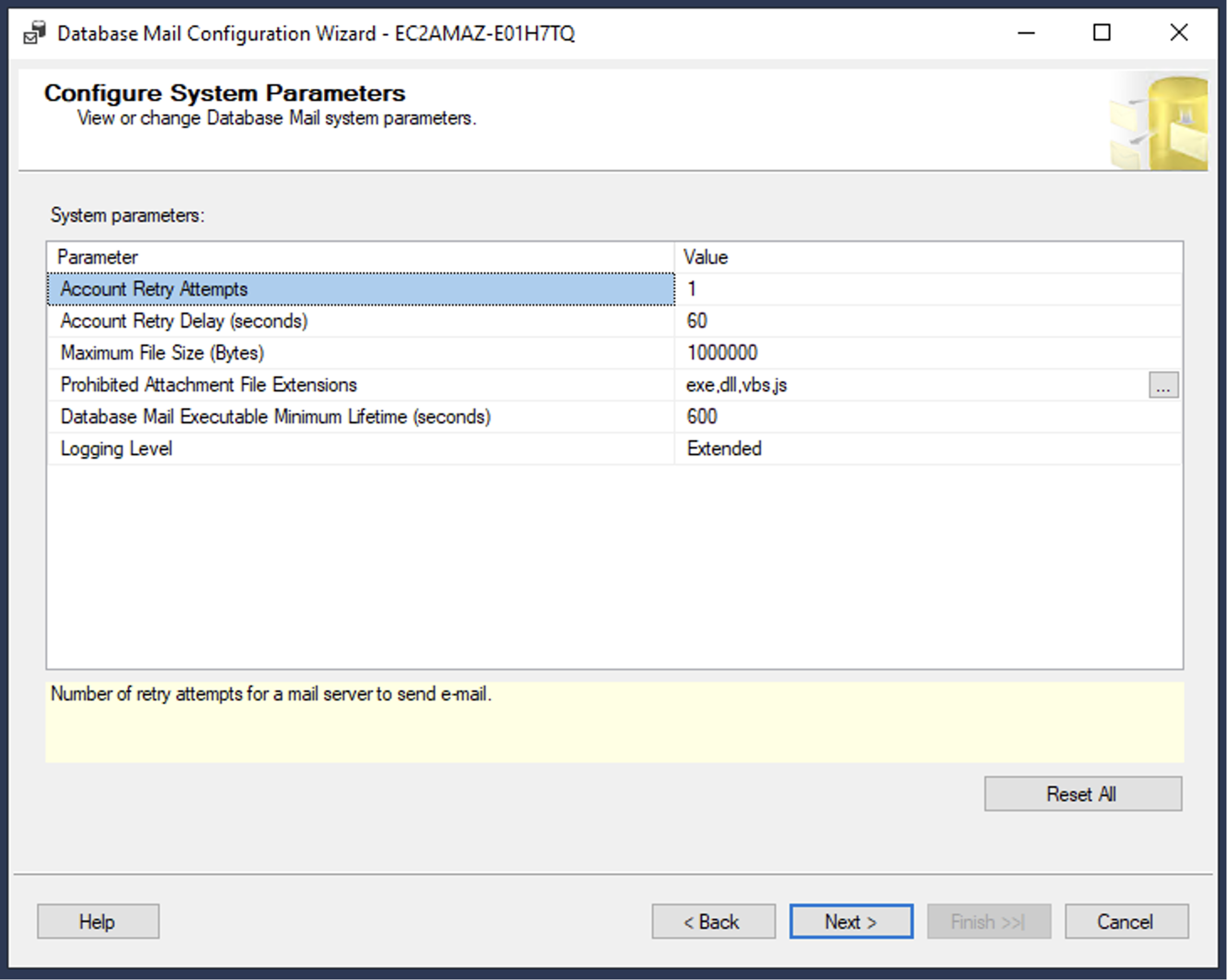
Step 7: Complete Setup
- Review the configuration summary.
- Click Finish to complete setup.
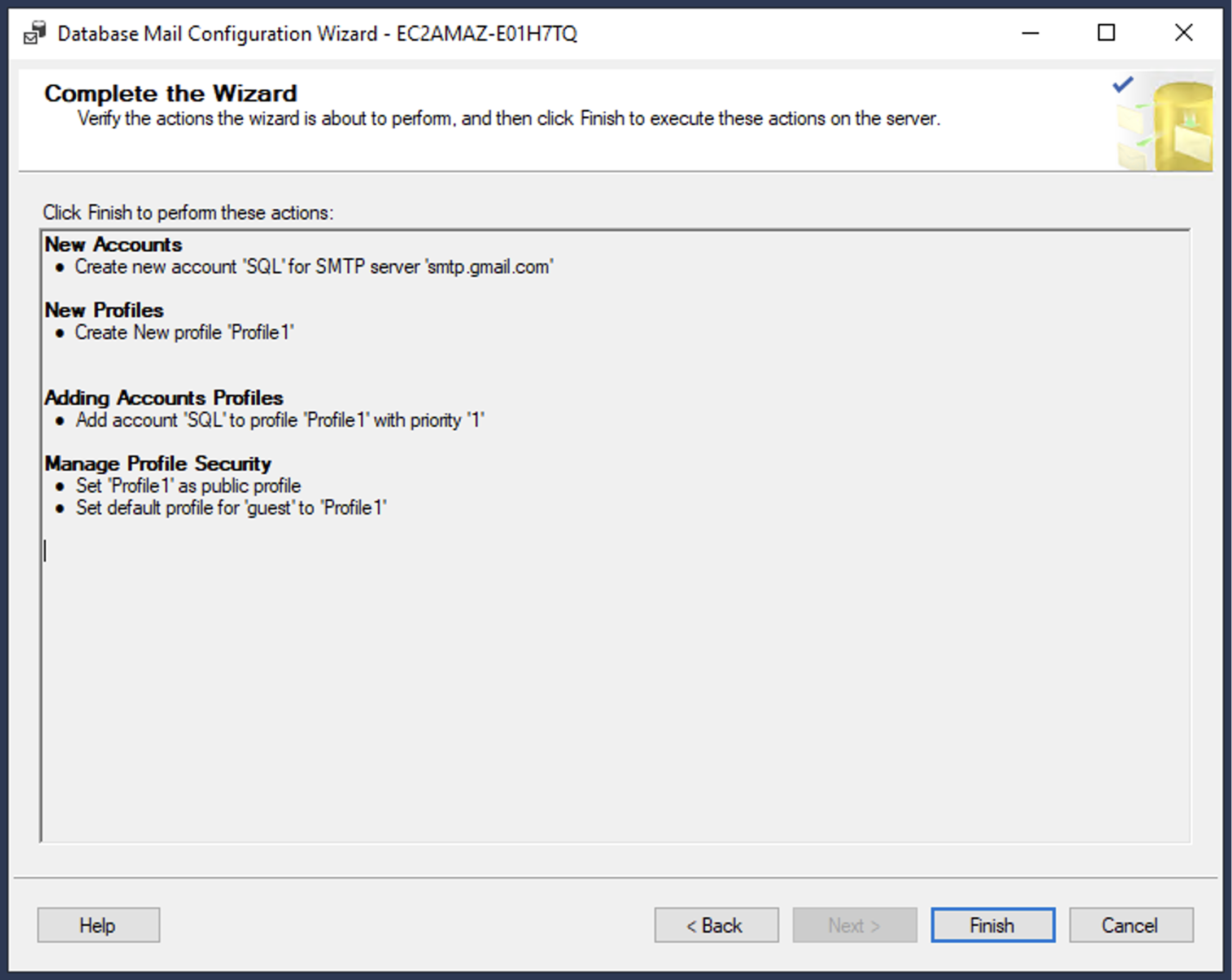
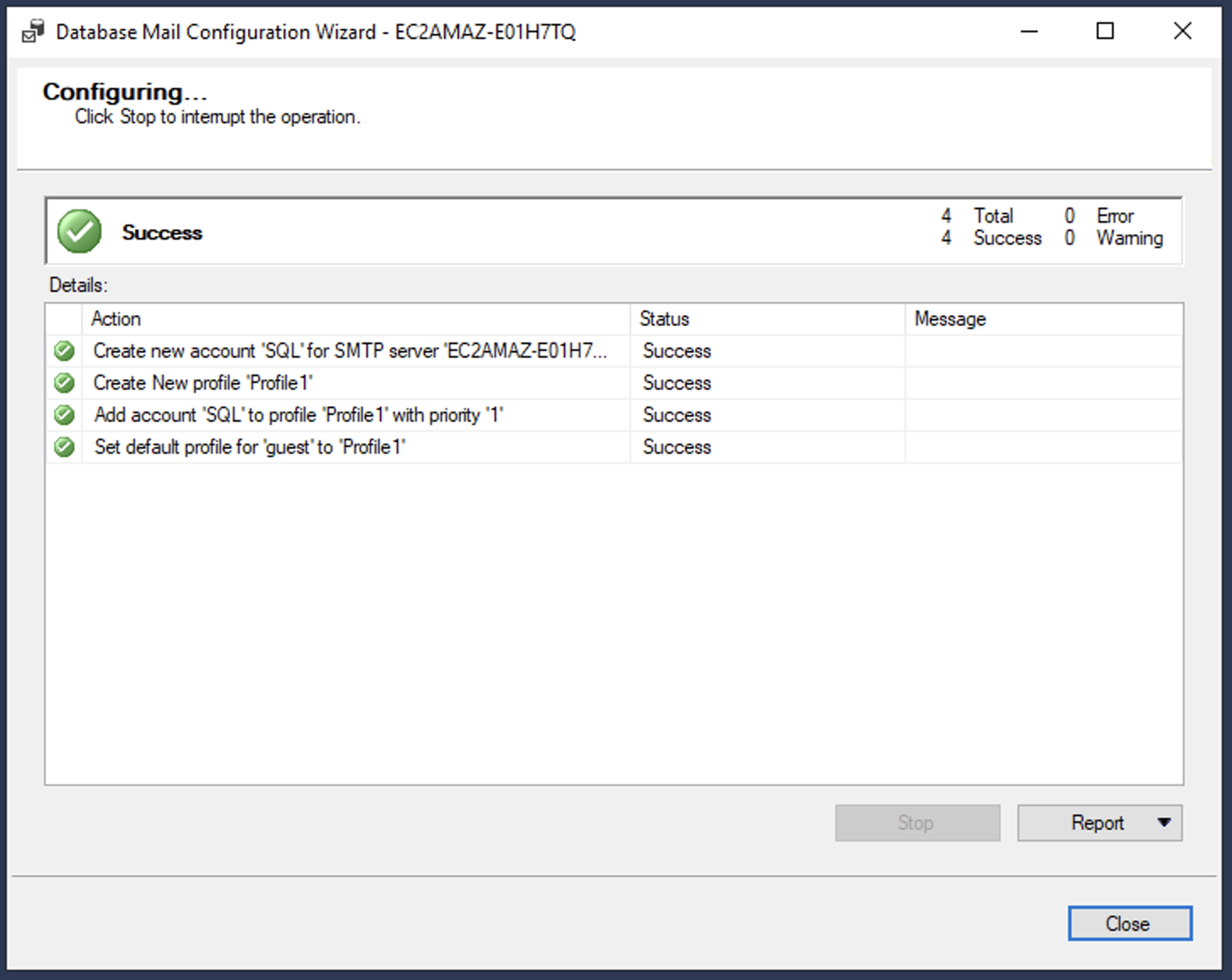
Once complete, Database Mail is ready to send notifications from SQL Server.
Troubleshooting Tips
- Verify SMTP server name and port are correct.
- Ensure authentication credentials are accurate.
- Allow SMTP relay from the SQL Server IP.
- Work with your email team to confirm security settings.
Configuring SQL Server Agent Alerts
Once Database Mail is set up, the next step is configuring SQL Server Agent to send alerts. SQL Server Agent monitors events and triggers notifications based on defined conditions.
- Ensure SQL Server Agent is running.
- Right-click SQL Server Agent and open Properties.
- Enable the mail profile under the Alert System tab.
- Save your changes.
From there, you can begin creating alerts based on your environment needs.
Create a New Alert
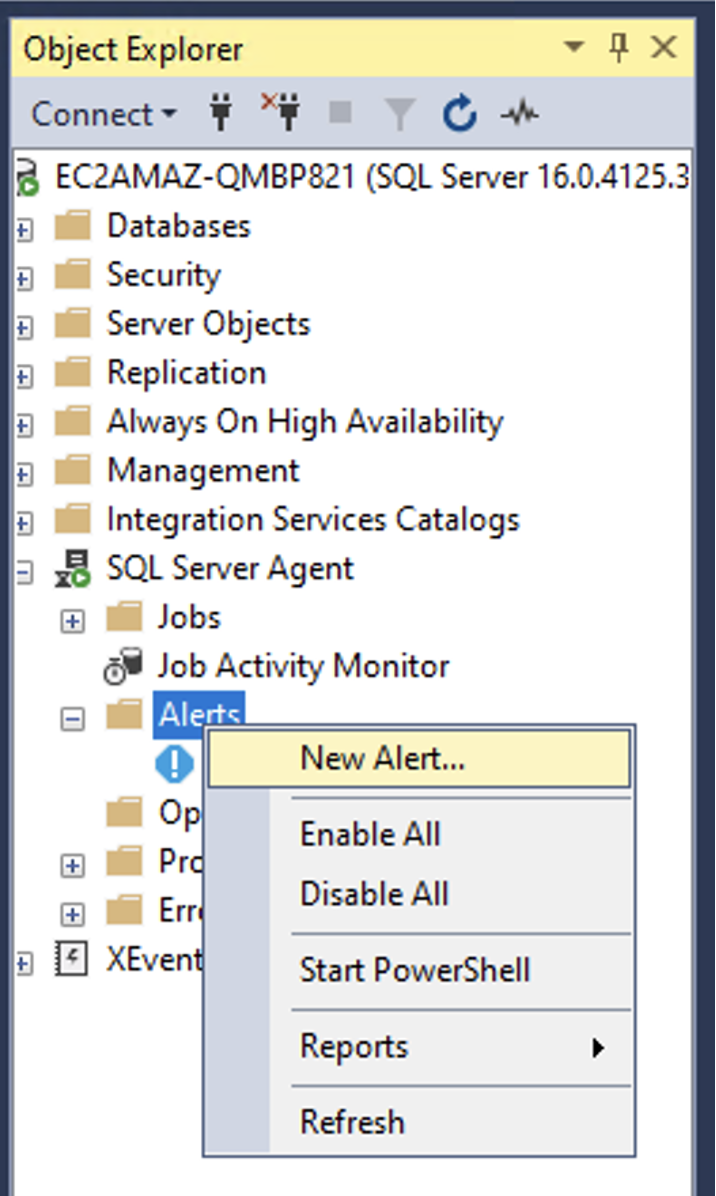
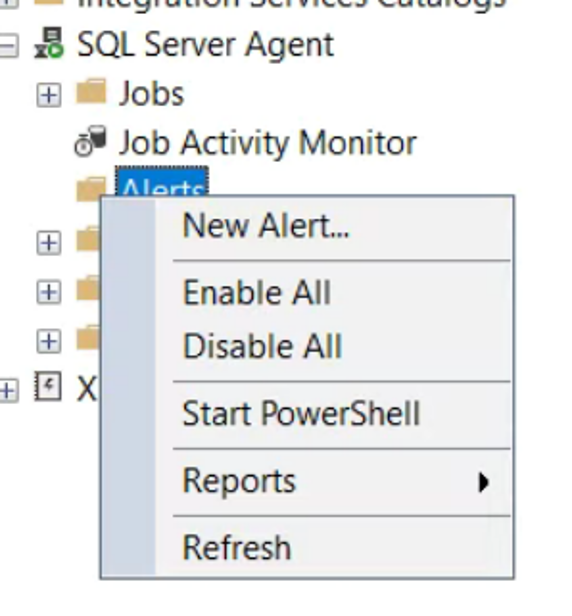
- Expand SQL Server Agent and right-click Alerts.
- Select New Alert.
- Provide a descriptive name.
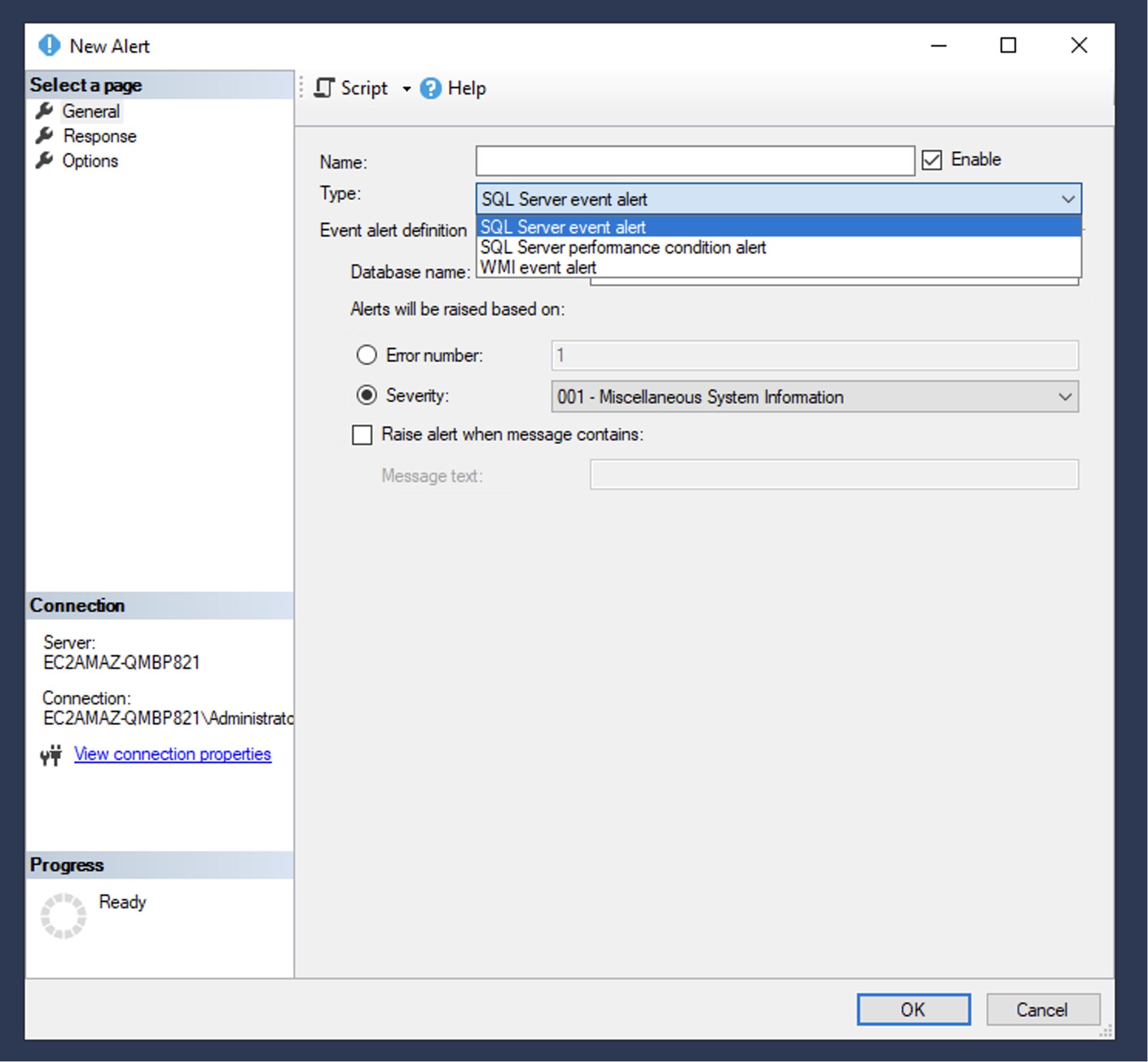
Choose Alert Type
- SQL Server event alerts (errors and events)
- Performance condition alerts (metrics and thresholds)
- WMI event alerts (system-level events)
Define Alert Conditions
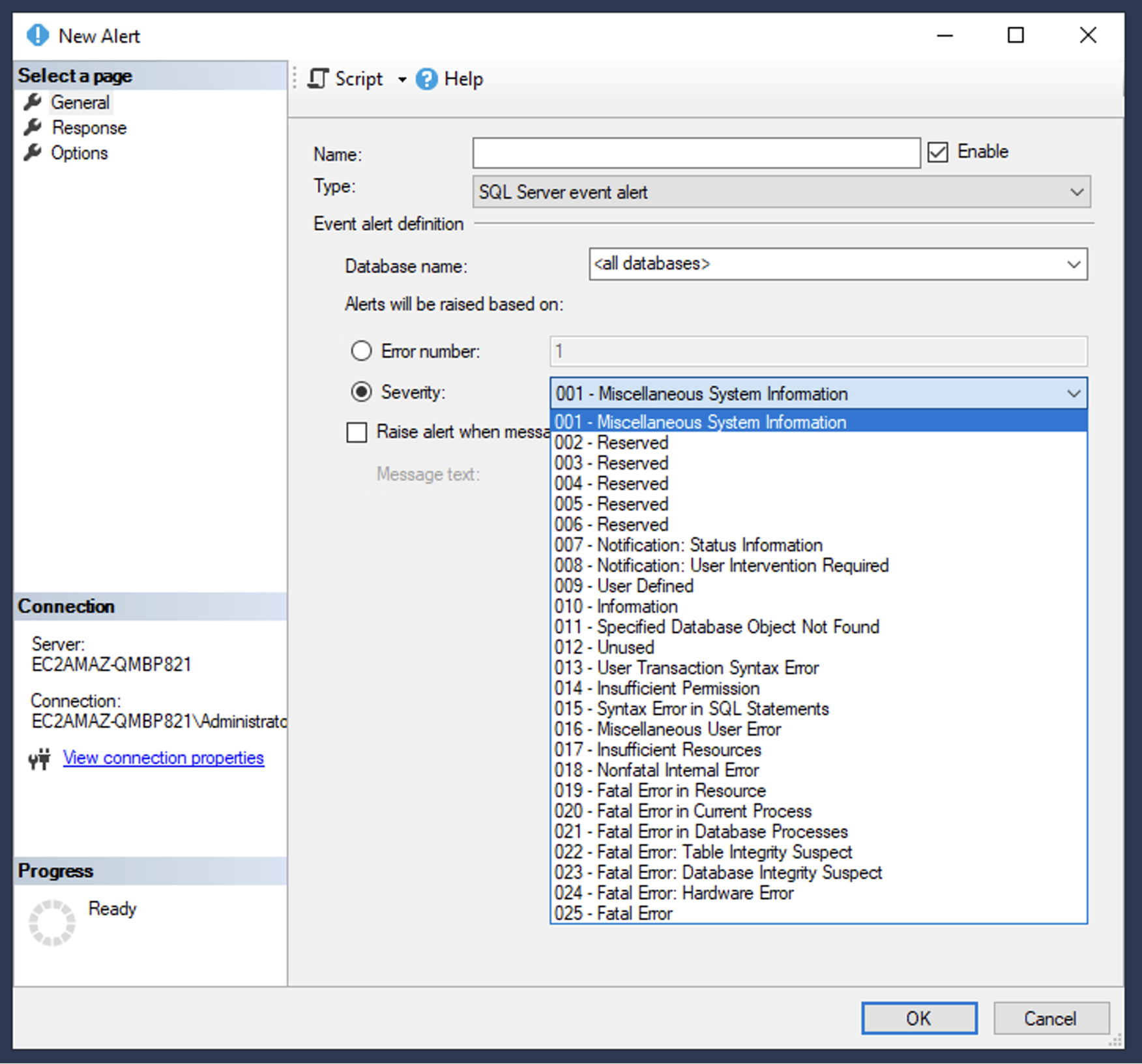
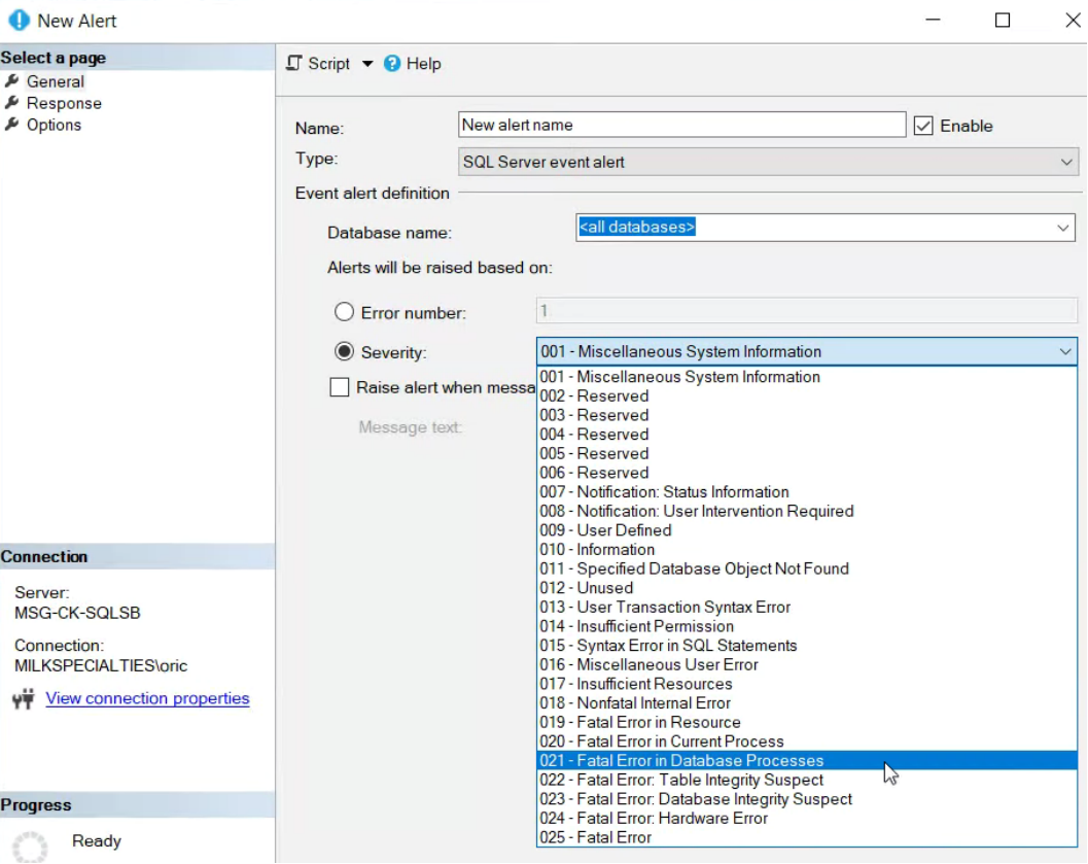
Depending on the alert type, you’ll configure thresholds such as error severity, performance counters, or system events.
Set Alert Response
- Send email notifications
- Trigger SQL jobs
- Log events to Windows
Save the Alert
- Review configuration
- Click OK to activate
Example Alert: Transaction Log Over 5 GB
- Create a new alert named “Transaction Log Over 5 GB”
- Select performance condition alert
- Set threshold to 5 GB
- Configure email notification to operators
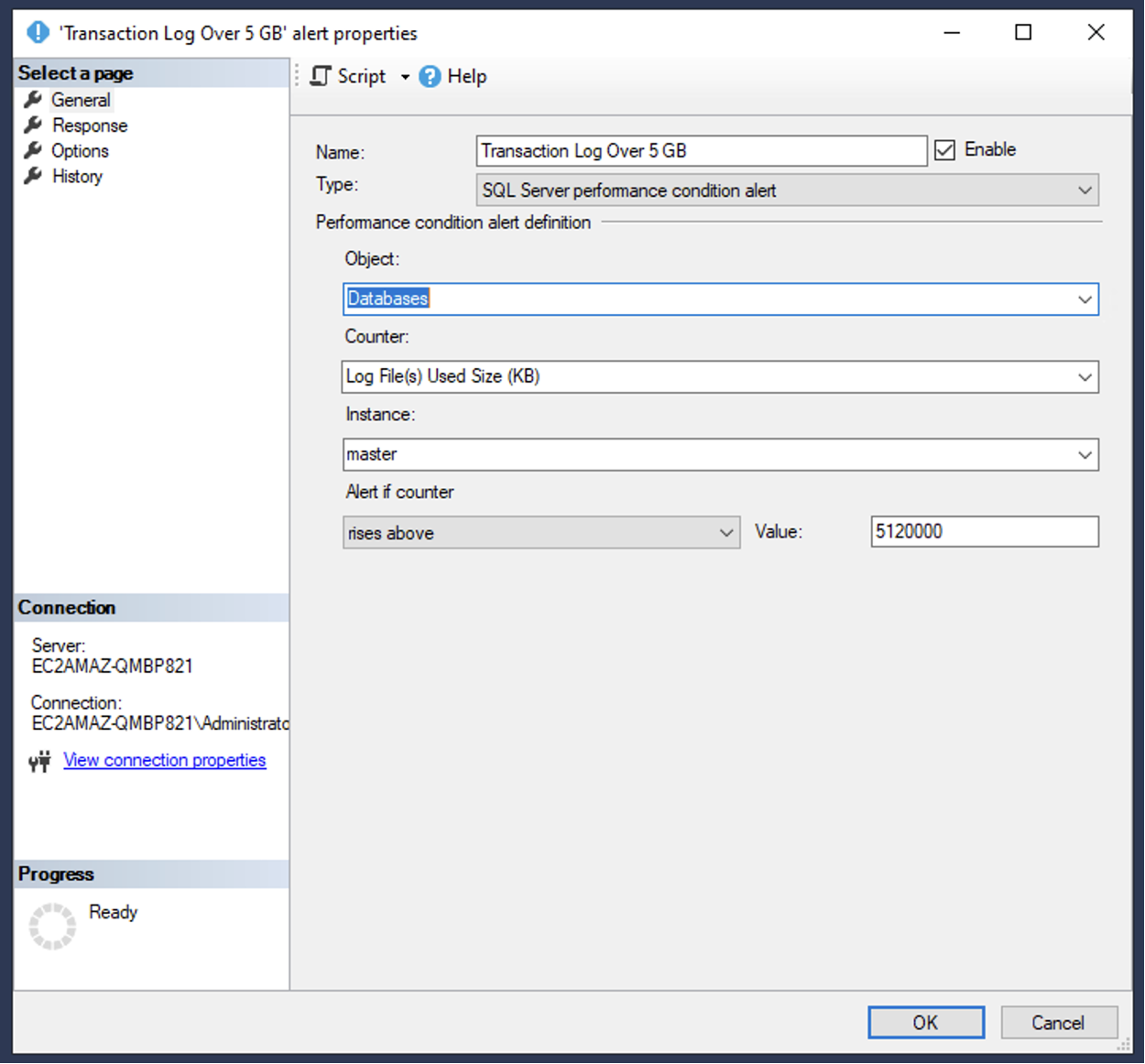
This type of alert helps you proactively manage storage and avoid performance issues caused by oversized logs.
Best Practices for SQL Alerts
- Monitor severity 16+ SQL errors
- Track deadlocks and long-running queries
- Watch for high CPU or memory usage
- Adjust thresholds to reduce noise
The goal is not to alert on everything, but to alert on what matters. Focus on actionable alerts that drive response.
You may also like: How to Improve SSIS Data Flow Task Performance
How Emergent Software Can Help
We help organizations design and implement SQL Server monitoring strategies that actually work. From configuring Database Mail and alerts to building full monitoring and response systems, our team ensures your environment is reliable, secure, and scalable. If this sounds familiar, we can help.
Final Thoughts
Database Mail and SQL Server Agent alerts are foundational tools for proactive database management. When configured correctly, they give your team visibility into issues before they impact users or business operations.
The key is thoughtful setup. Not every alert is useful, and too many alerts can create noise that leads to missed critical issues. Focus on meaningful signals and adjust over time as your environment evolves.
If you're ready to improve your SQL Server monitoring and alerting strategy, Emergent Software is here to help. Reach out — we'd love to learn more about your goals.
Frequently Asked Questions
What is Database Mail in SQL Server?
Database Mail is a feature that allows SQL Server to send emails using an SMTP server. It is commonly used for alerts, job notifications, and system messages. It enables automated communication when issues occur.
Why is Database Mail important?
Database Mail enables proactive monitoring by sending alerts when issues arise. Without it, teams may not know about problems until users are impacted. It is essential for maintaining database reliability.
What is SQL Server Agent?
SQL Server Agent is a service that automates tasks such as jobs, alerts, and monitoring. It works with Database Mail to send notifications when specific conditions are met.
What types of alerts can SQL Server Agent create?
SQL Server Agent supports event alerts, performance alerts, and WMI alerts. These cover errors, performance thresholds, and system-level events. Each type serves a different monitoring purpose.
How do you avoid alert fatigue?
Focus on actionable alerts and avoid monitoring every possible metric. Set realistic thresholds and review alerts regularly. This ensures your team only receives meaningful notifications.
Can this setup be used in Azure SQL?
Some features differ in Azure SQL, but similar alerting can be achieved using Azure Monitor. The concepts of proactive monitoring and alerting still apply.